
WooCommerce Fulfilment
Follow these steps to connect WooCommerce and fulfil orders directly from Logistical Solutionist (Pty) Ltd.
WooCommerce Fulfilment Setup (Step 1 - 8)
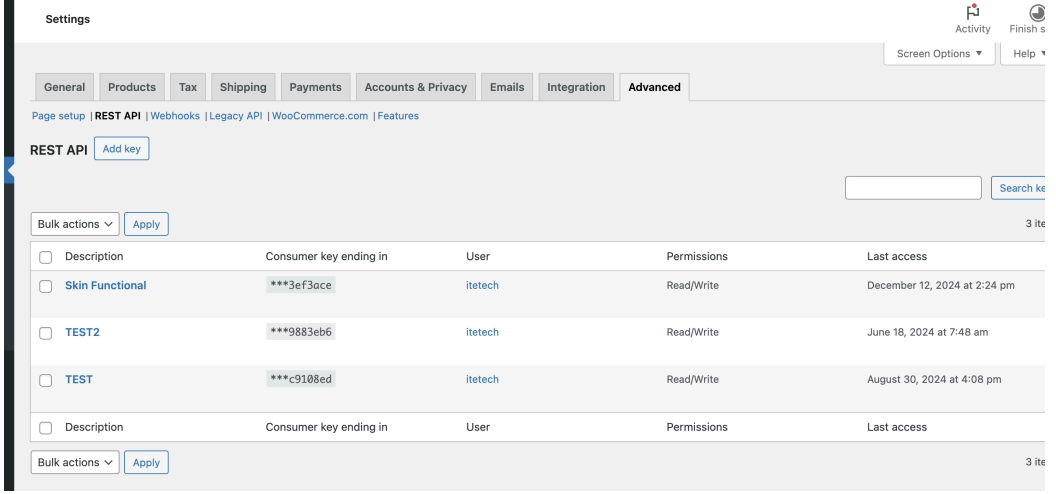
Create a New Token
In the admin go to WooCommerce → Settings → Advanced → REST API, then click Add key. Choose Read/Write permissions, then copy the Consumer Key and Consumer Secret for the Client Portal integration.
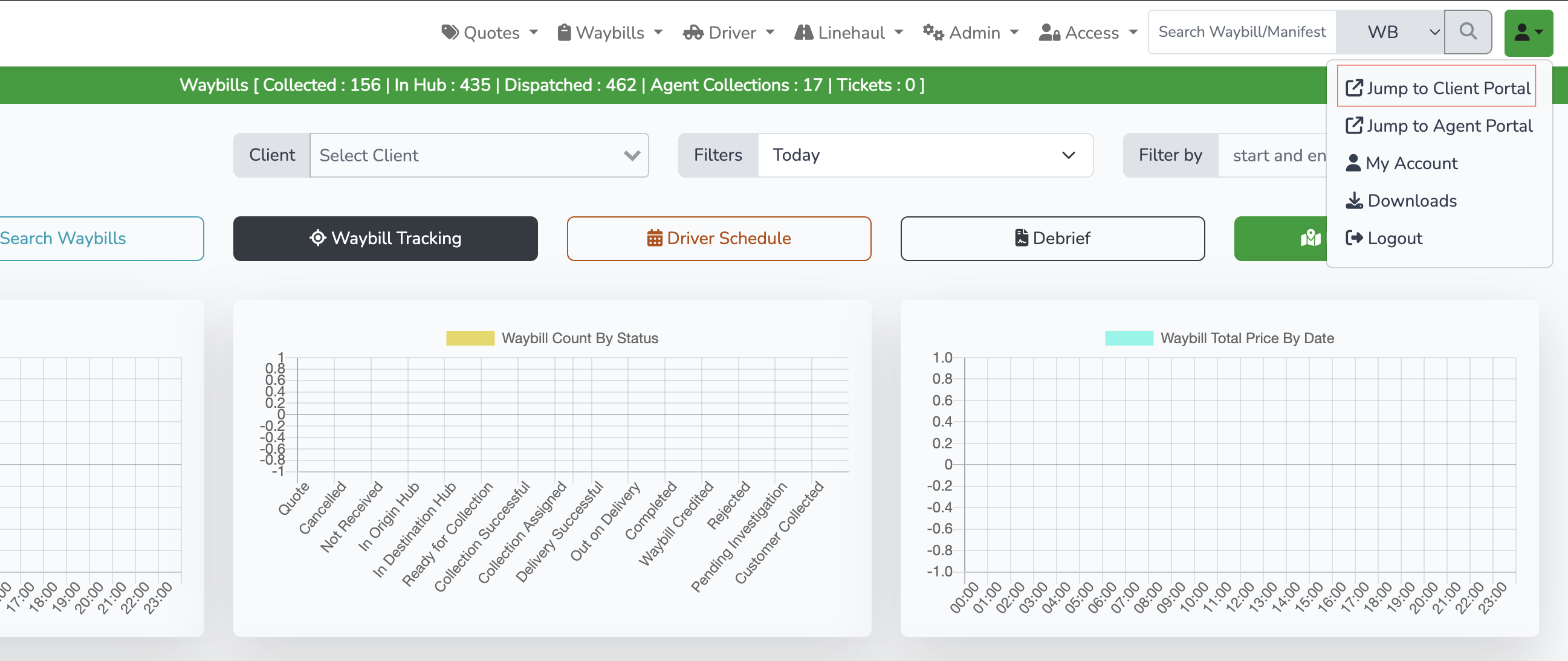
Open Client Portal
Click the top-right user menu and select Jump to Client Portal. This takes you from the admin dashboard to the client portal where ecommerce workflows are managed.
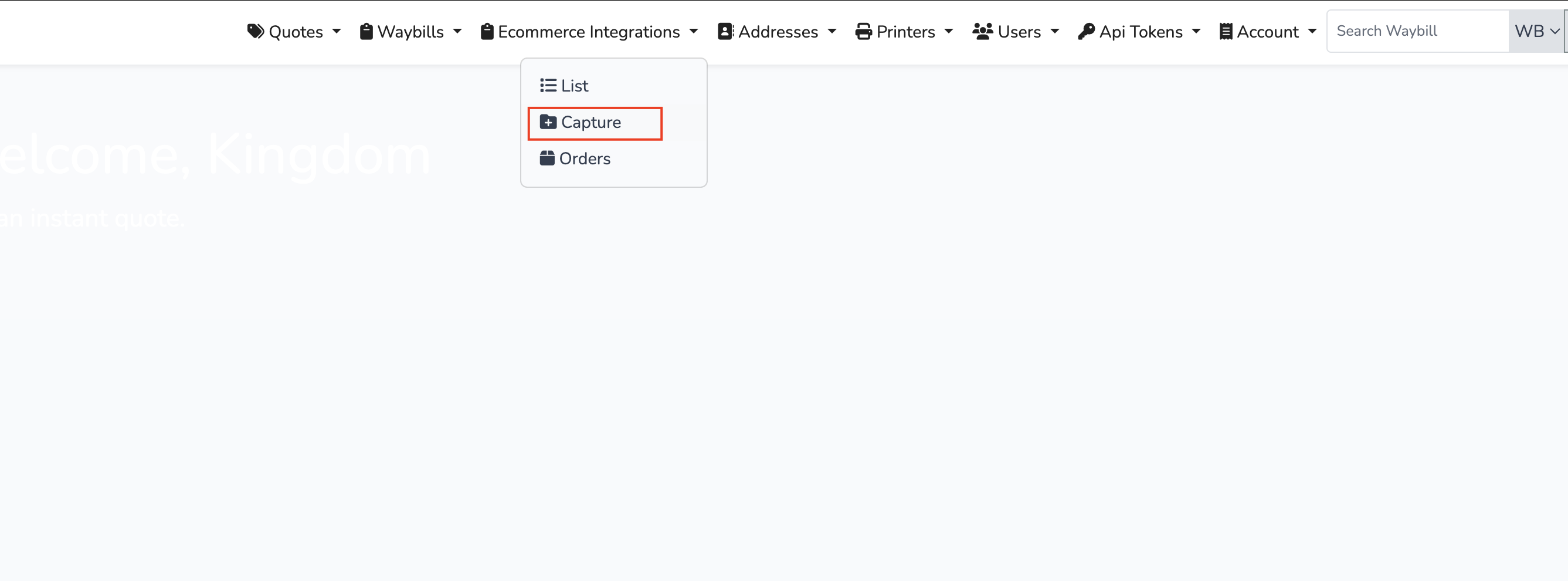
Go to Ecommerce Integration Capture
Click Ecommerce Integrations -> Capture. This opens the Capture Ecommerce Integration page where you add a new wooCommerce store connection.
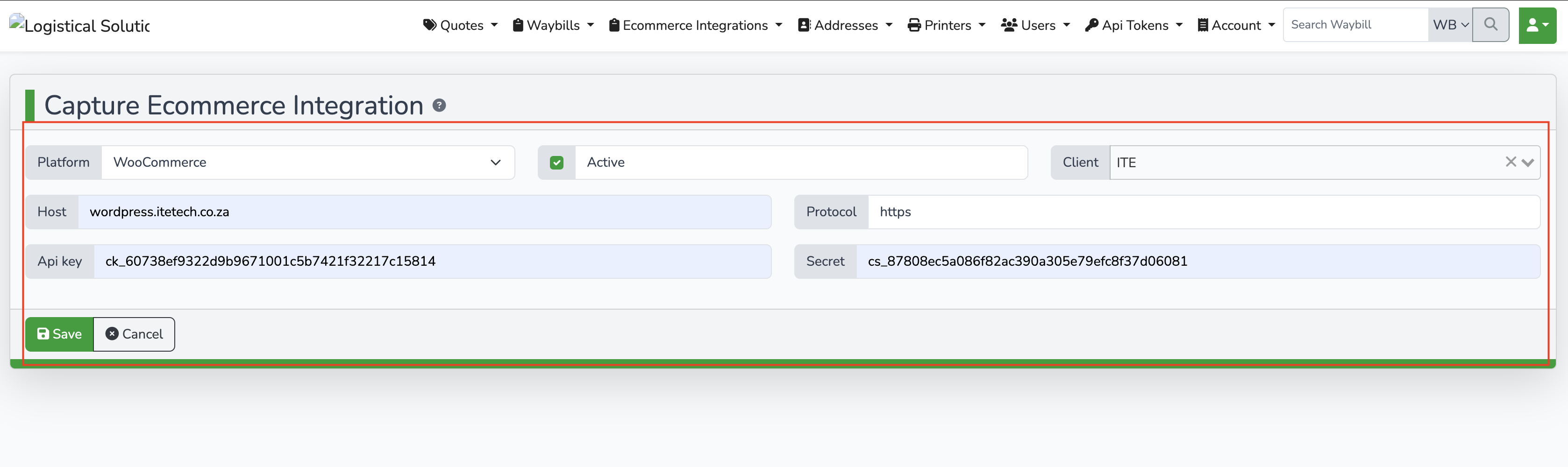
Capture wooCommerce Credentials
Set Platform to wooCommerce, enable Active, then fill in: Host, Protocol, Token, and Store ID. Check the correct client is selected, then click Save.
Open wooCommerce Orders
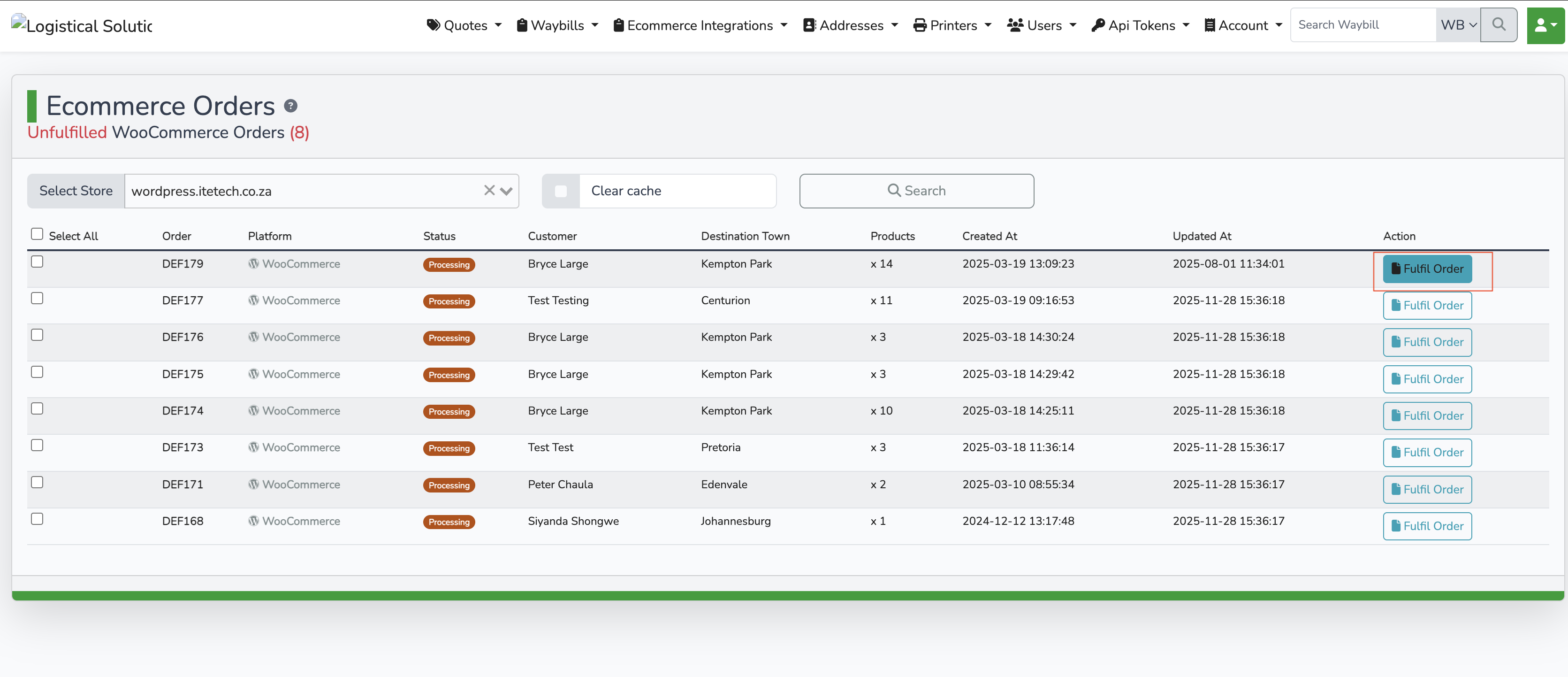
Click Ecommerce Integrations -> Orders. This opens the Ecommerce Orders page. Select your wooCommerce store in Select Store, then click Search to load unfulfilled orders. Find the order row you want to process, then click Fulfil Order.
Complete Waybill and Save
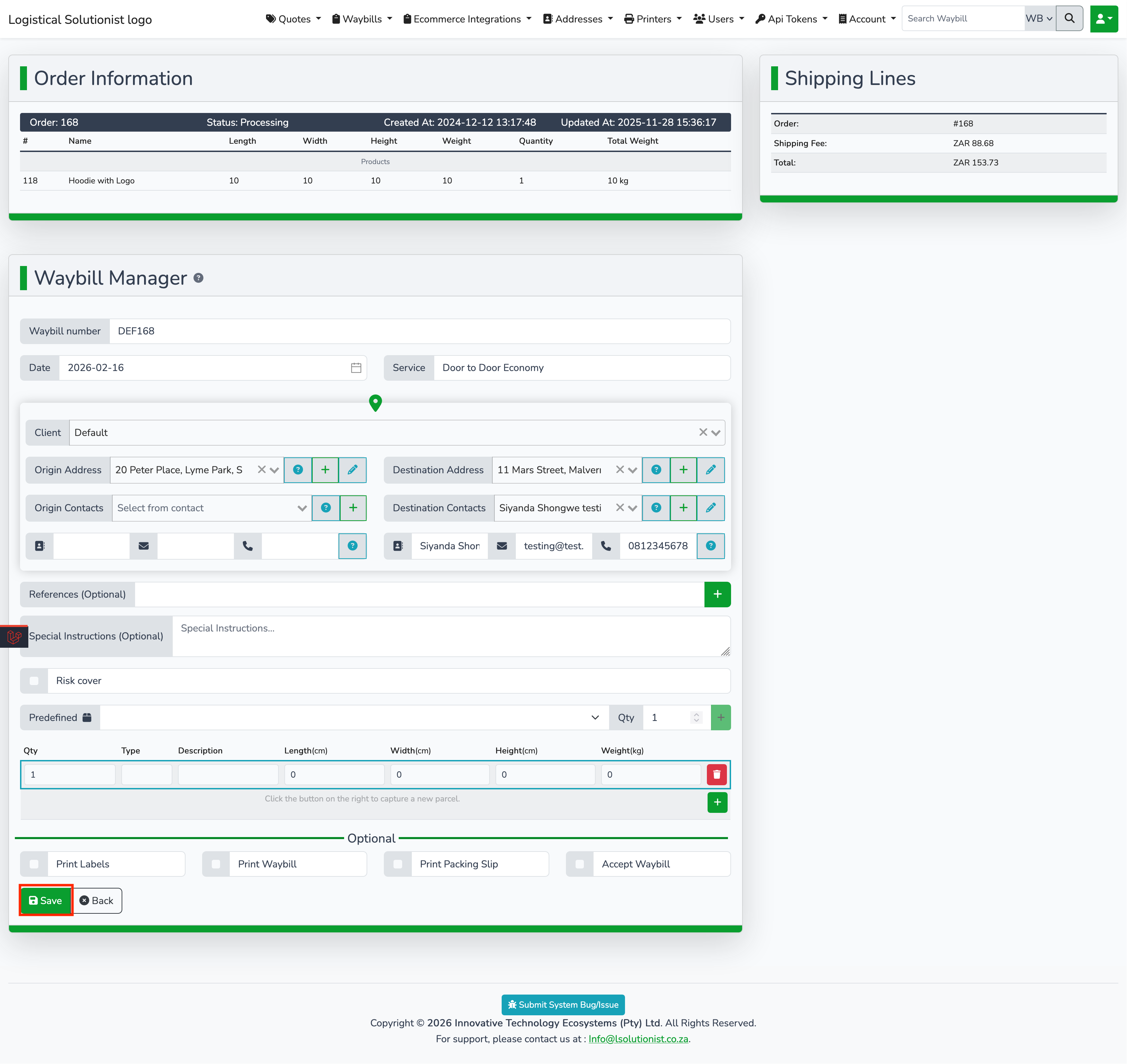
On the Waybill Manager Review order/shipping info, complete required waybill fields, then click Save.
Search in Waybills
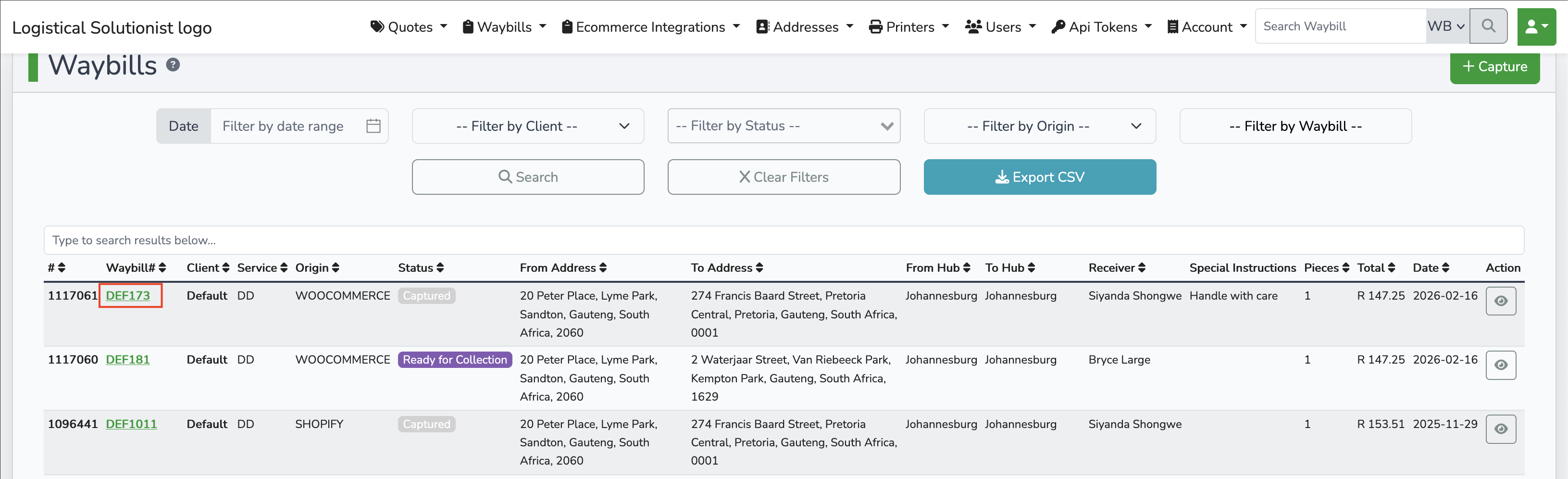
Click Waybills -> Search from the top menu. In Waybills, find the captured WooCommerce waybill and click the waybill number to open its details.
Accept the Waybill
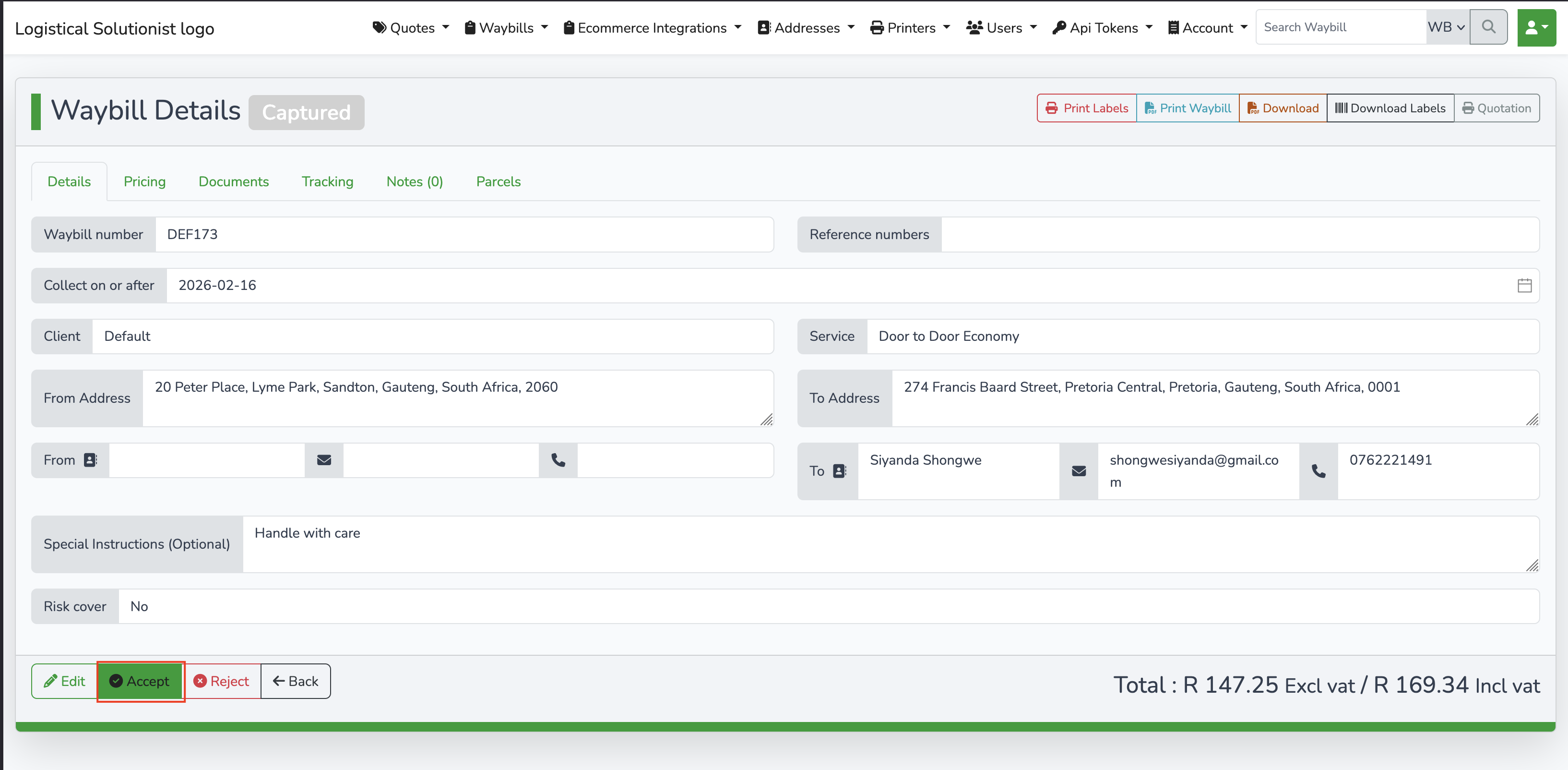
Review details and click Accept to complete the wooCommerce fulfilment process.
Need help with WooCommerce fulfilment?
Our team can help with integration setup, sync checks, and order fulfilment troubleshooting.
Talk to Support